Input Fields
Content
Introduction
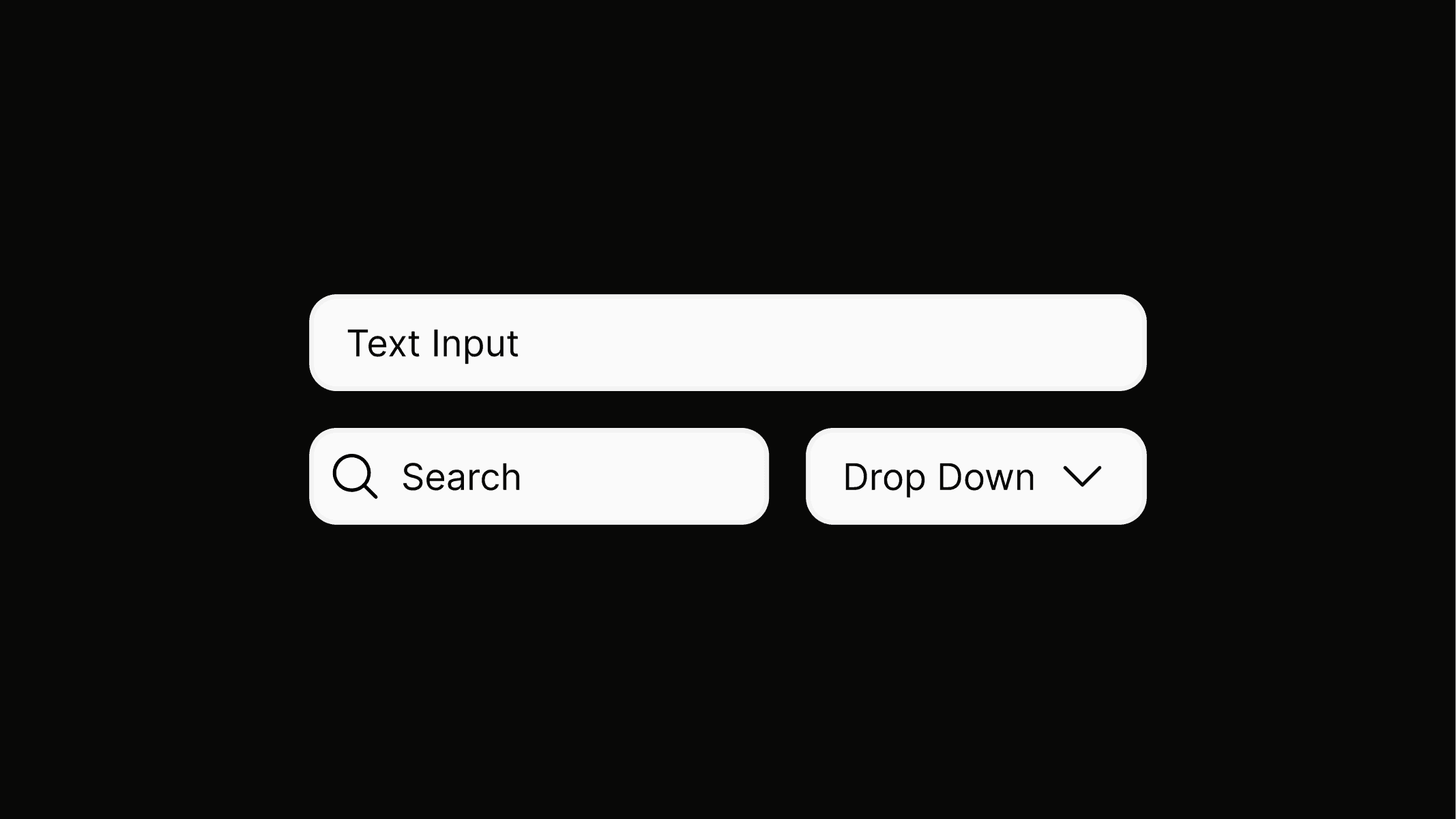
Input fields serve as a central interaction element across the system. They are used to search and filter through presented products, ensuring quick access to relevant content. At the same time, they appear in forms where users can submit tools, provide information, or register for participation. This dual purpose makes them essential for both exploration and contribution within the platform.
Variants
There are three variants available to cover the necessary interaction patterns: the standard input field for direct text entry, the dropdown for selecting from predefined options, and the search field optimized for quickly finding products or content.
Text Input
Use button.primary to highlight the most important action on a page, such as submitting a form. A primary button should only appear once within a given area, and not every screen requires one.
Drop Down
Use button.secondary for less prominent actions, such as supporting tasks or secondary submissions. Secondary buttons can appear multiple times within a given area, and not every screen requires one.
Search
button.tertiary is reserved for navigation within the platform and serves exclusively as a back button. It uses the browser’s native back function to return the user to the previous page.
Preview
In tis preview area, input fields can be experienced in the context of a form, product search, or as a comment field.
Comments
Anatomy
Input fields follow the established rules of spacing, color, and typography, while building on the foundational structures of button.secondary.l and button.primary.l. The exact tokens and applications can be seen in the illustrations.
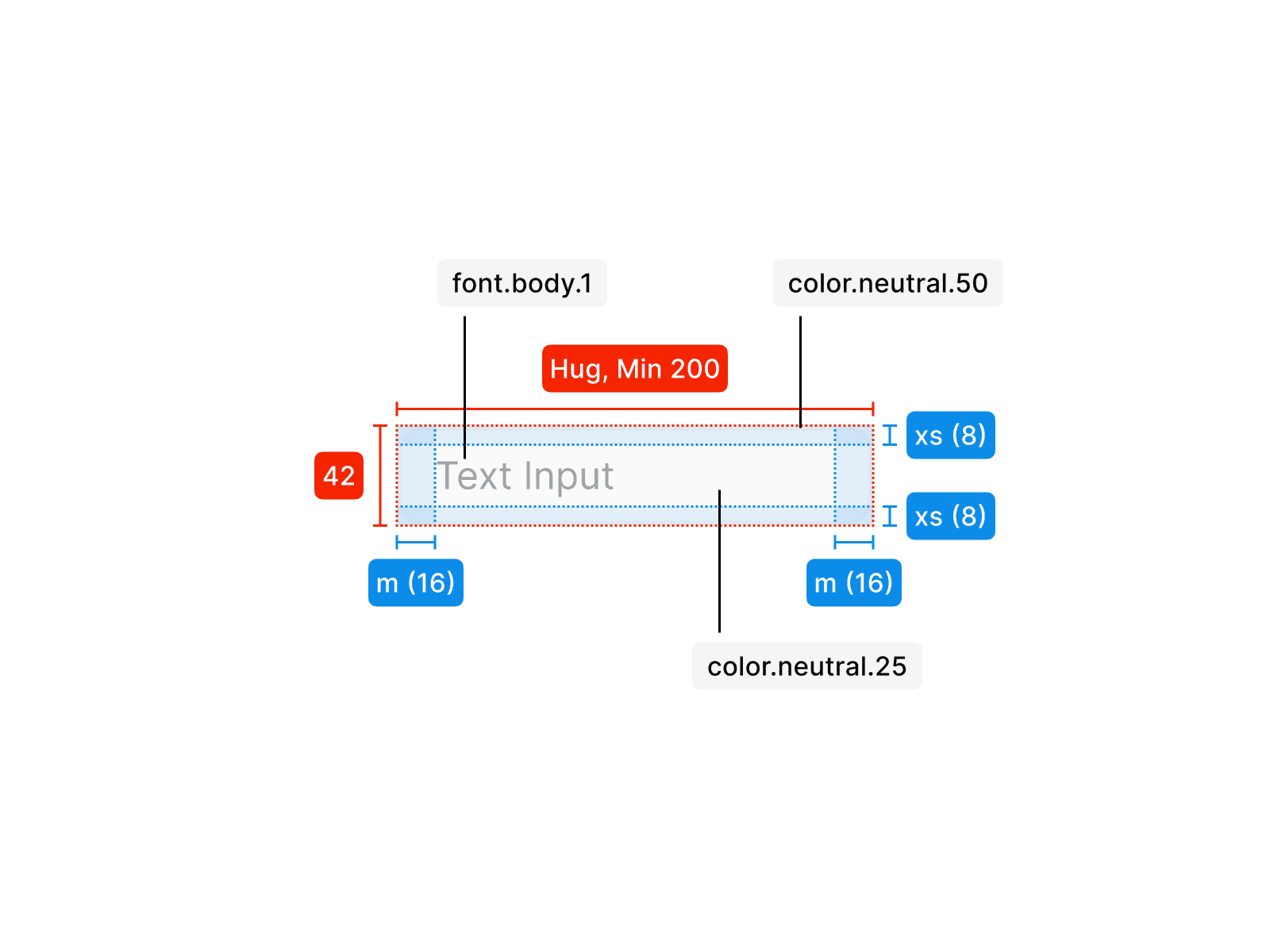
Text input
The text input has the same height as button.l, while a defined minimum width ensures that entered text remains visible at all times. Background and outline are aligned with the styling of button.secondary.
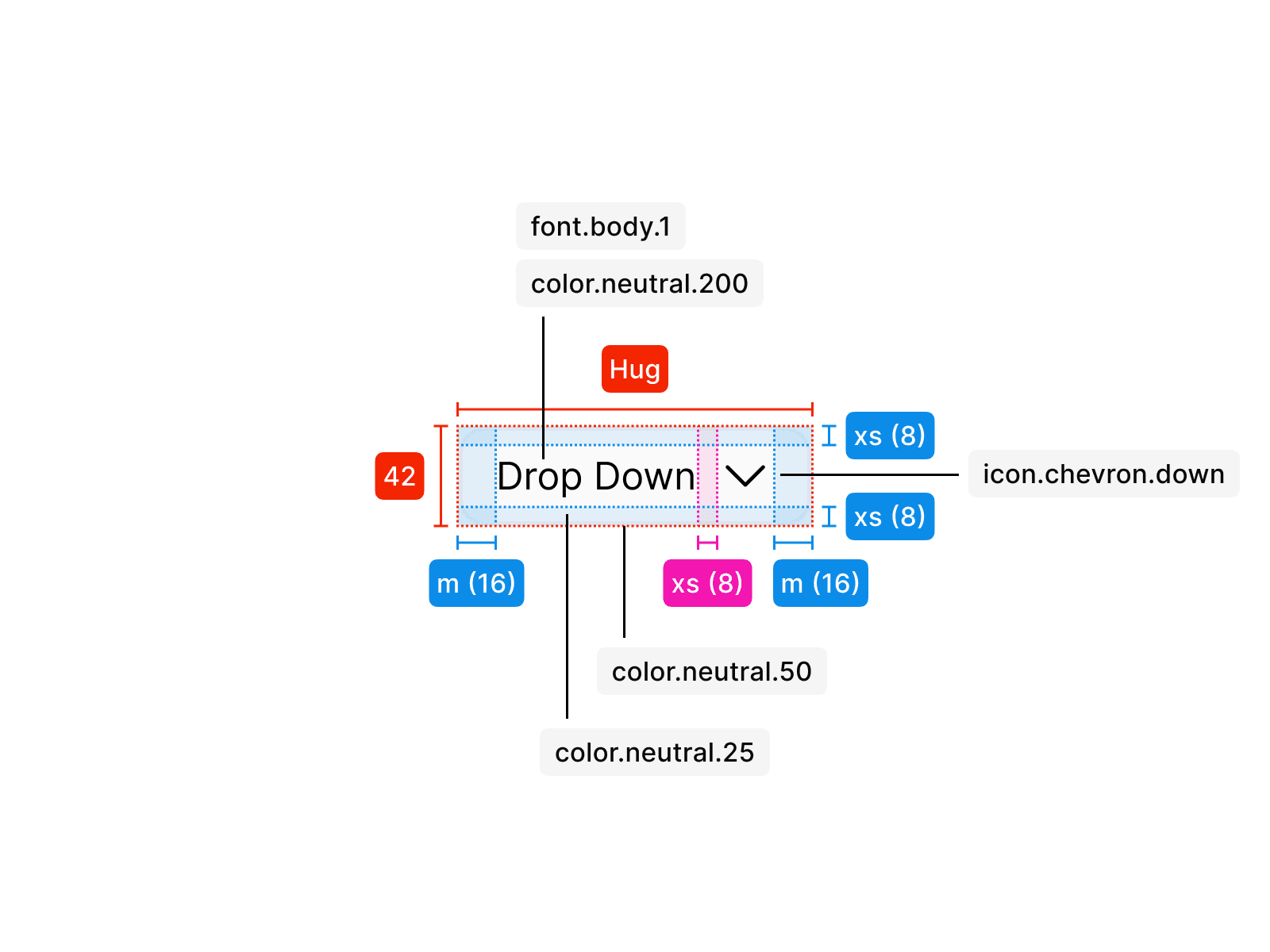
Drop down
The dropdown has the same height as button.l, with a hug width ensuring that the selected option remains visible at all times. Background and outline align with the styling of button.secondary. The spacing between icon and text follows the spacing rules and is kept minimal with spacing.s.
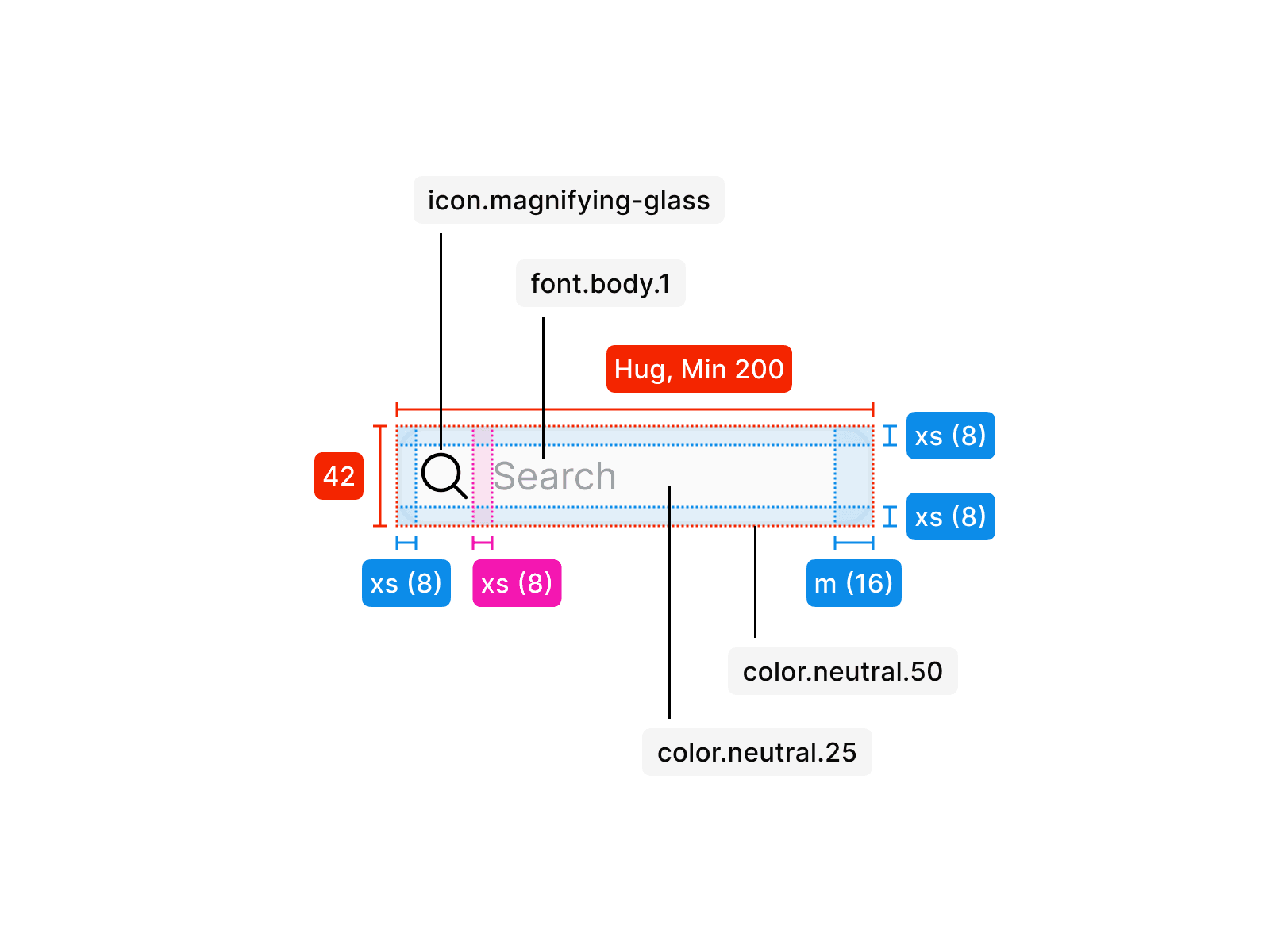
Search
The search field has the same height as button.l, with a minimum width of 200px to ensure that the entered query remains visible at all times. Background and outline align with the styling of button.secondary. The spacing between icon and text follows the spacing rules and is set to spacing.s.
Usage
An tooltip is used in specific contexts and follows clear rules for consistent application. The examples below show how it should be applied correctly and what to avoid.
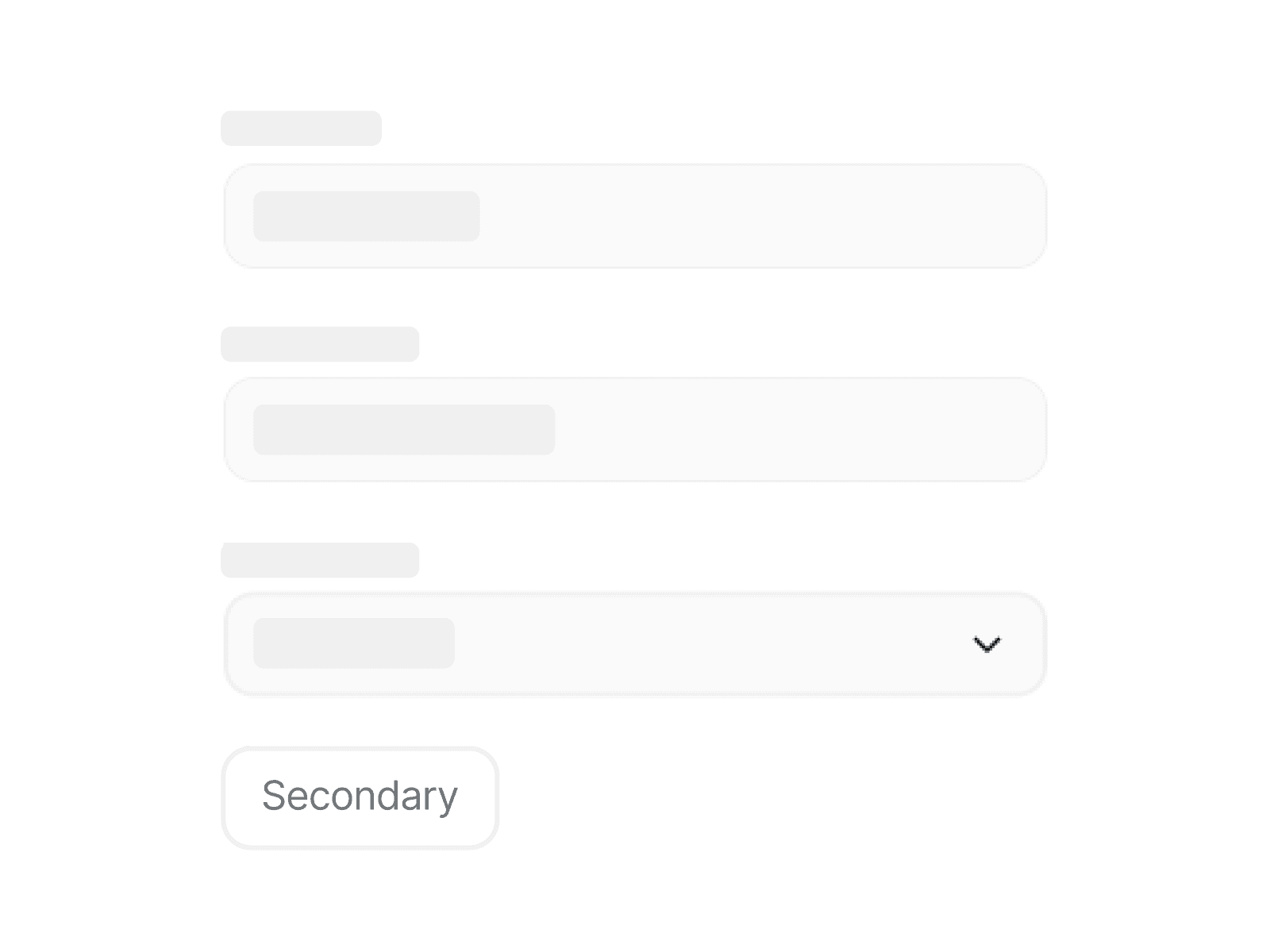
Do not use any button other than button.primary.l when building a form to ensure consistency and proper hierarchy within the interface.
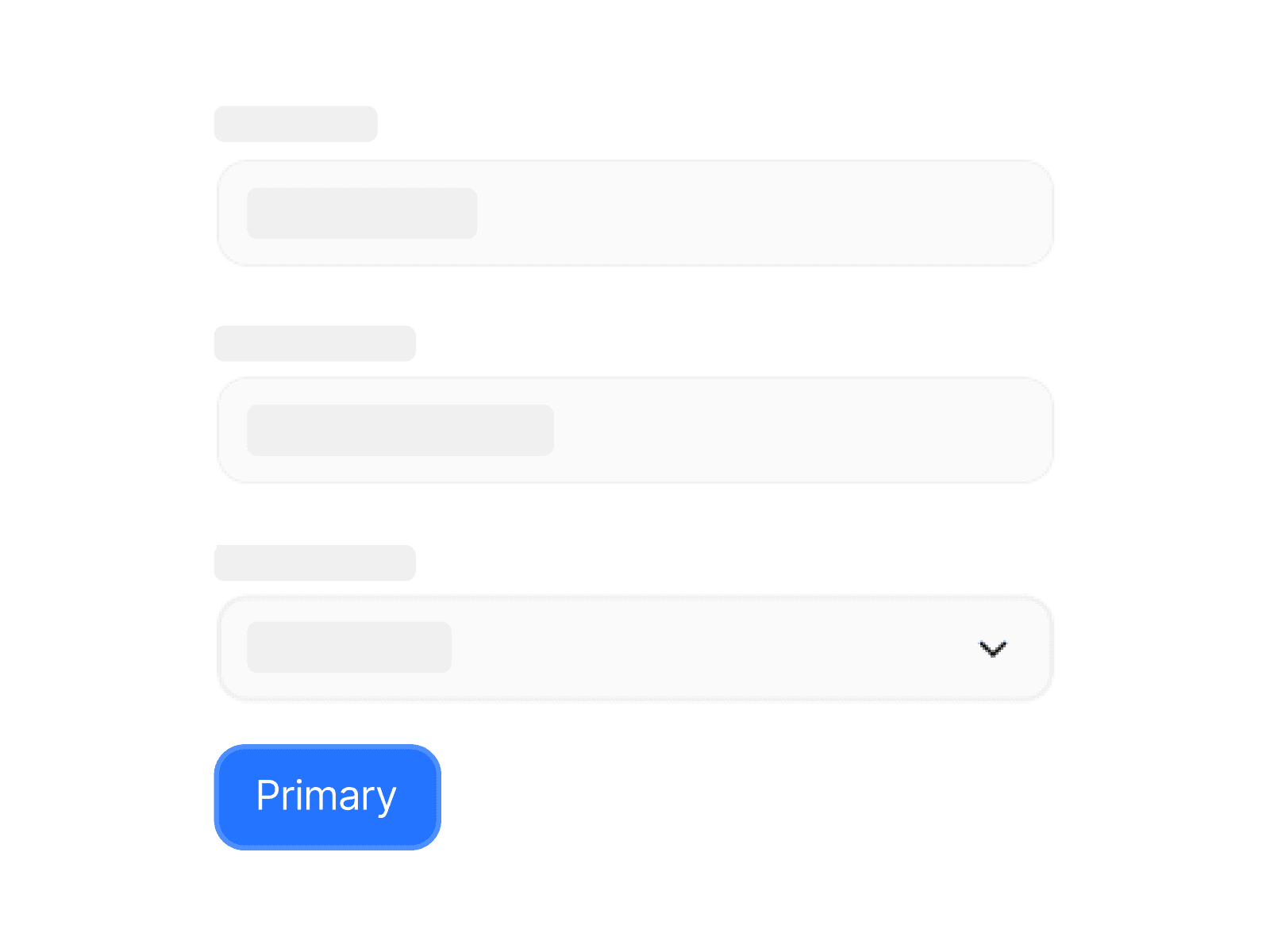
When building a form, only use button.primary.l as the action trigger to create consistency across all submissions.
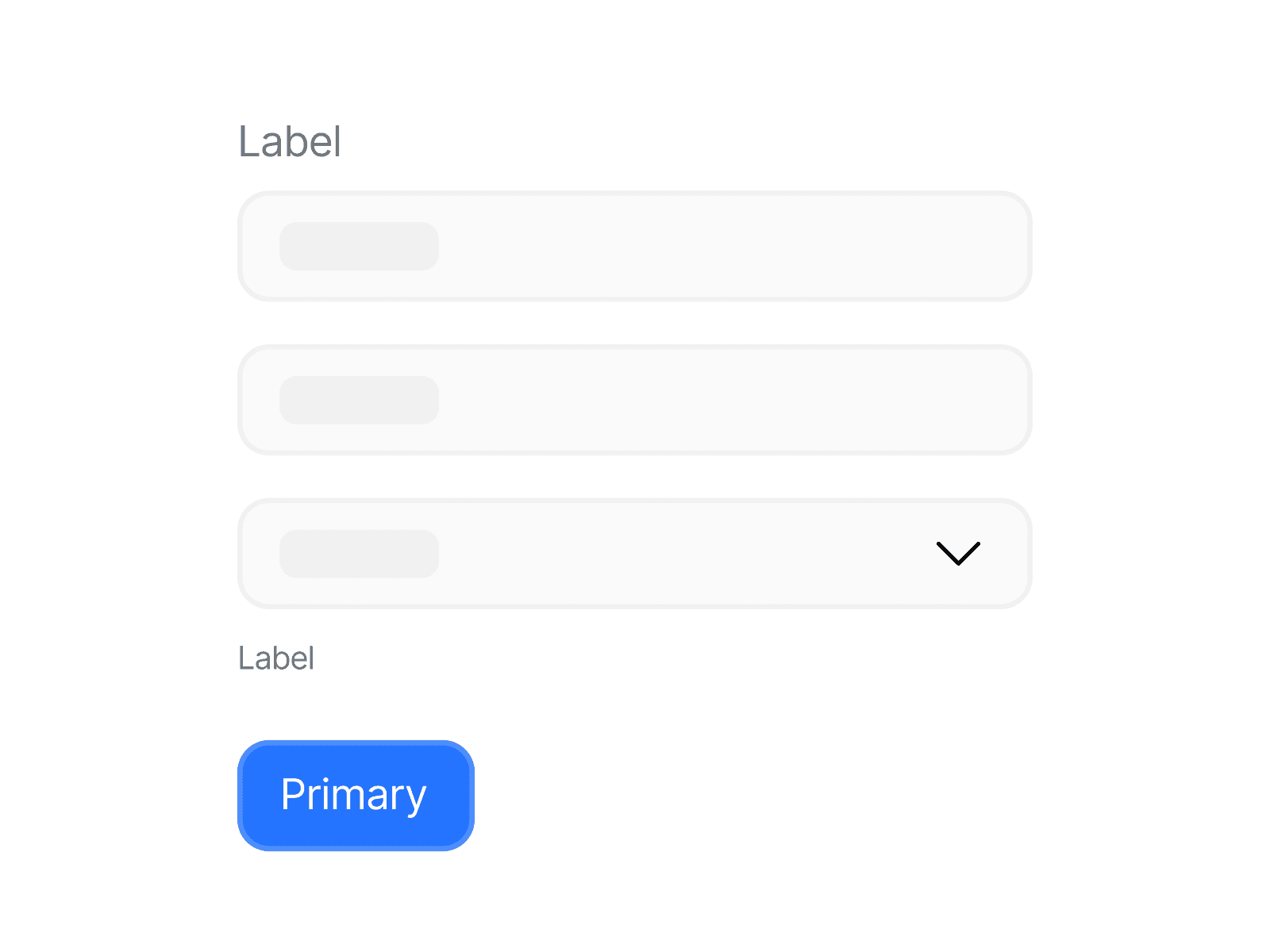
Labels should never be resized, removed, or repositioned. Keeping their placement and proportions consistent ensures clarity and accessibility.
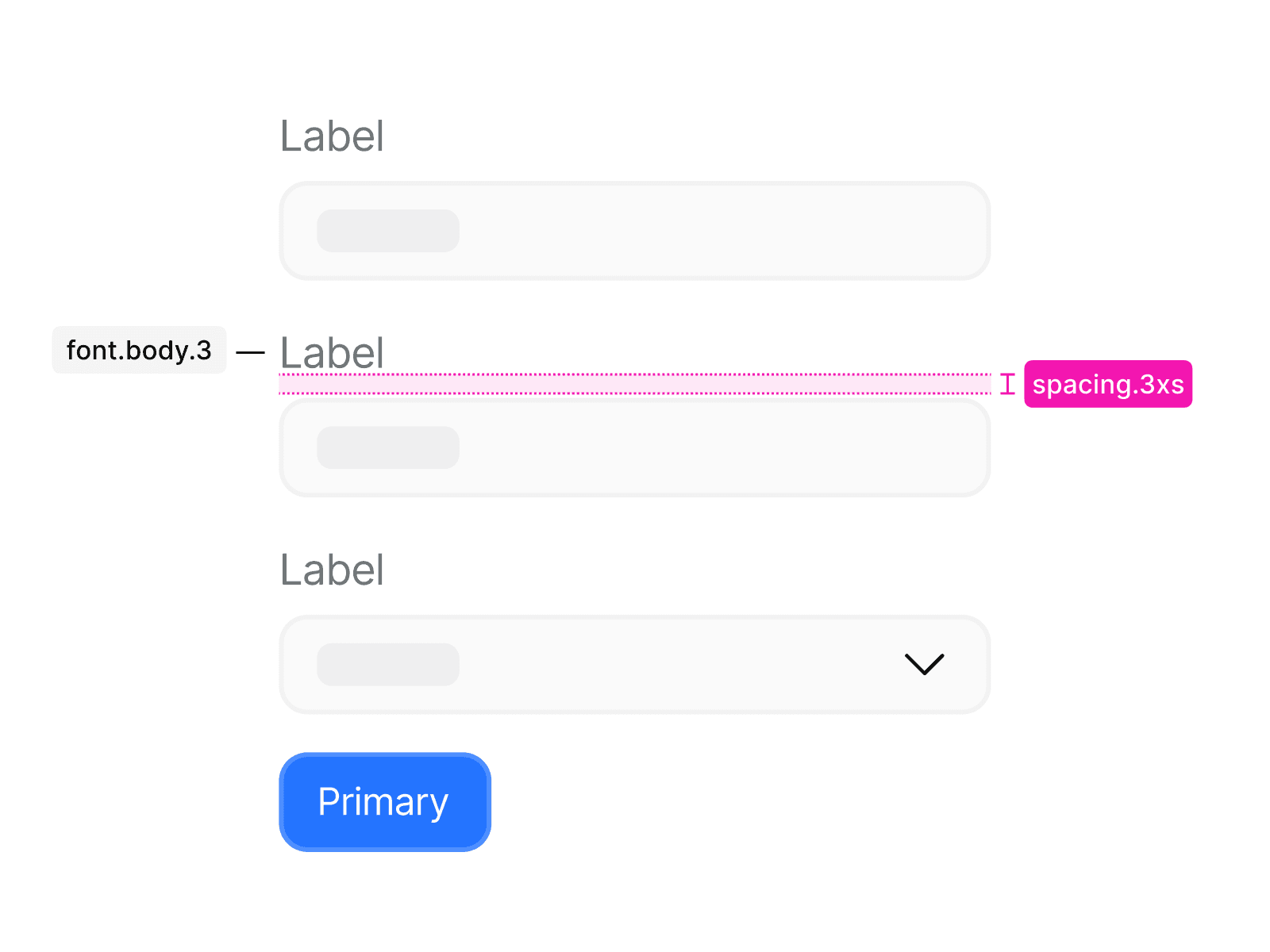
Always apply font.body.3 for labels and position them above the input field with spacing.3xs to maintain a clear and uniform structure.
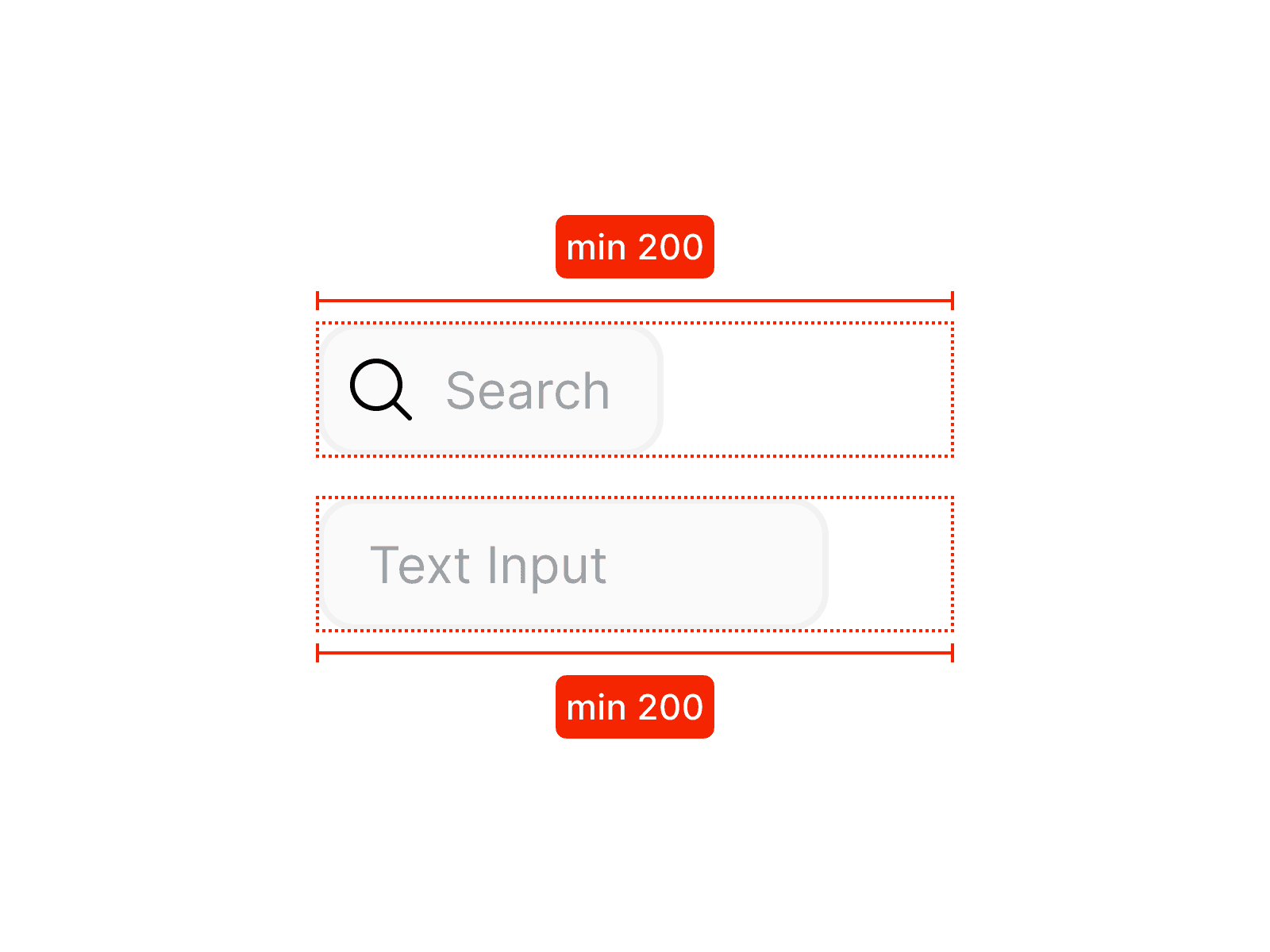
Textual input fields must have a minimum width of 200px so that entered content remains visible at all times without cutting off information.